Incoming Stock report
The Incoming Stock report lists everything you've ordered from suppliers that hasn't arrived yet: which product, on which purchase order, how many units are still to come and how much they cost. Use it to plan your Open to Buy budget and to keep track of the money still tied up in open purchase orders.
Go to Reports > Inventory > Incoming Stock. The report is available on the Professional and Ultimate plans.

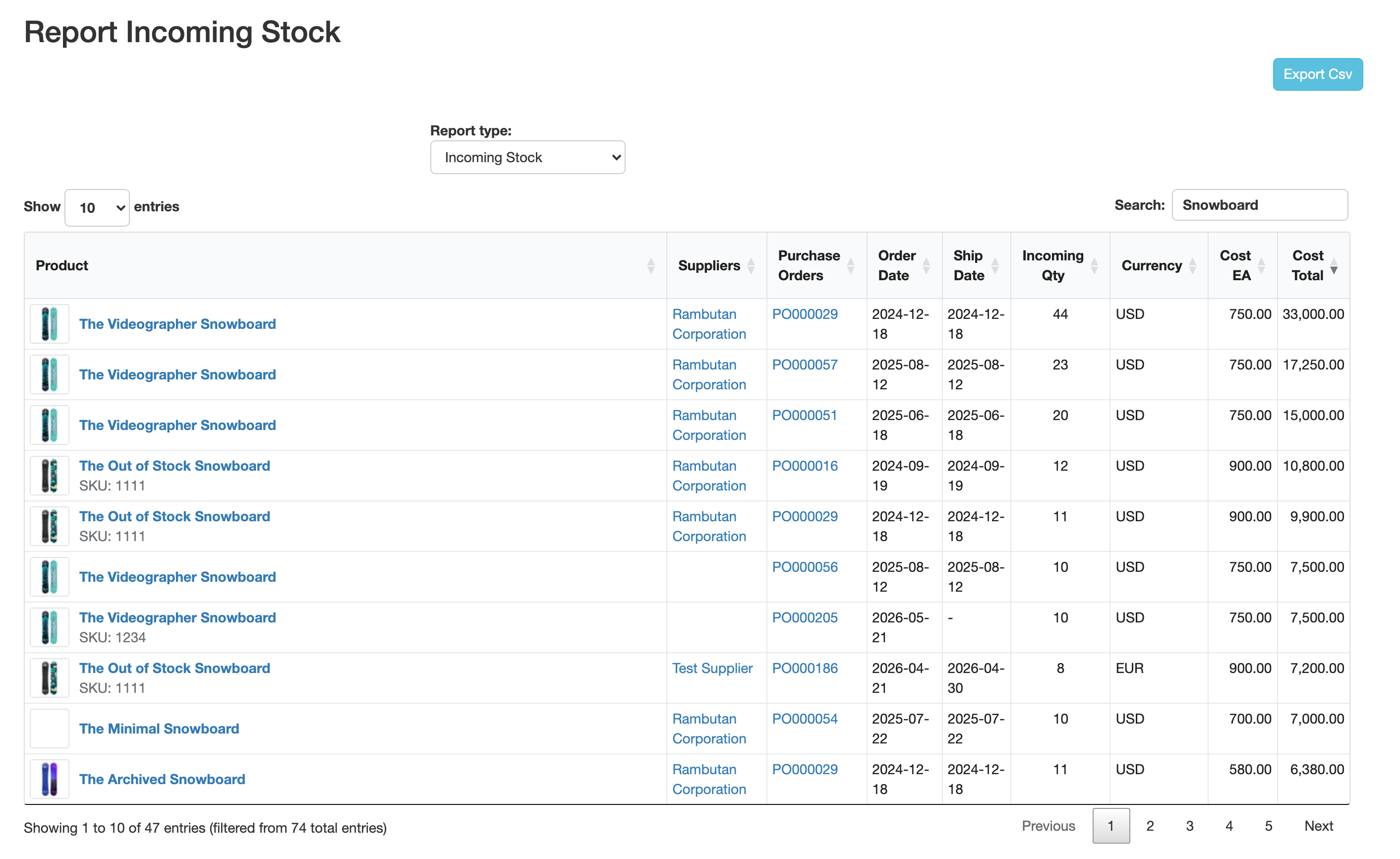
Which purchase orders are included
Only purchase orders with the status Confirm or Receiving are counted, and only the products that still have units to receive. Pending and Sent POs aren't counted yet. Once every unit of a product is received, it leaves the report.
Columns
Each row is one product line on one purchase order. A product you ordered on three POs shows on three rows, each with its own cost.
| Column | What it shows |
|---|---|
| Product | The product, its variant and SKU. Click the name to open it in Shopify. |
| Suppliers | The supplier or vendor of the PO. Click it to open the supplier. |
| Purchase Orders | The PO number. Click it to open the PO. |
| Order Date | The PO date. |
| Ship Date | The expected date of the PO. - when it's empty. |
| Incoming Qty | Units still to arrive: Qty Ordered − units already received on that line. |
| Currency | The currency of the PO. |
| Cost EA | The unit cost on the PO line, in the PO's currency. |
| Cost Total | Incoming Qty × Cost EA: the value of the units still to arrive. |
Example: you ordered 48 Sugar Squisher at $5.00 on PO 000002 and already received 20. The row shows Incoming Qty 28 and Cost Total $140.00, the amount still outstanding on that line.
Cost EA is the cost you entered on the PO line, before the line's Discount (%) and Tax (%). PO-level discount, shipping, tax and extra fees aren't included either. If a PO has discounts or taxes, its Cost Total here can differ from the totals on the PO page.
Amounts are never converted between currencies. If you buy in several currencies, check the Currency column before you add amounts together, or sort by it.
Search and sort
- Search: type a product name, SKU, supplier or PO number to show only matching rows.
- Click a column header to sort by it. For example, click Cost Total twice to see your largest outstanding amounts first, or sort by Ship Date to see what arrives next.
- Show ... entries sets how many rows appear per page.
Export to CSV
Click Export Csv to download every row of the report (search and sort aren't applied to the file). The file is named PO_Report_IncomingStock_Cost_<date>.csv and has the columns Product name, Product sku, Suppliers, Purchase Orders, Order Date, Ship Date, Incoming Qty, Currency, Cost EA and Cost Total.
Amounts have no thousands separators, so you can add up Cost Total straight away in a spreadsheet, for example with a pivot table by supplier or by currency for your Open to Buy plan.
FAQ
A product I ordered isn't in the report. Check that its PO is Confirm or Receiving. Pending and Sent POs aren't counted, and neither are Completed, Closed or Canceled ones.
Why does a product show on several rows? It's on several purchase orders (or on several lines of the same PO). Each line keeps its own cost, so each gets its own row.
Cost EA shows 0.00. No cost was entered on that PO line. Open the PO and enter the cost; the report updates right away.